




Kif Issolvi l-Iżball 1110 tal-iPhone?

Updating or restoring an iPhone is usually straightforward, but sometimes an unexpected error can interrupt the process. One issue you may encounter is iPhone error 1110, particularly when trying to update or restore an iPhone using iTunes or Finder. In some cases, the iPhone may also become stuck on the Apple logo, recovery mode screen, or another startup screen.
In this guide, we’ll briefly explain what iPhone error 1110 means and show you how to resolve iPhone error 1110 with several practical solutions.

1. What Is Error 1110 on iPhone?
iPhone error 1110 typically appears when an iOS update or restore gets interrupted before it can finish. In many cases, the culprit is simple: your iPhone doesn’t have enough free storage to complete the process.
iOS requires free storage for downloading, unpacking, and installing system files. If the iPhone is almost completely full, the update may fail and trigger error 1110. A failed or interrupted iOS update, software glitches, or system corruption may also prevent the device from starting correctly.
Common symptoms include an iPhone stuck on the Apple logo, recovery mode, a boot loop, or an unsuccessful update or restore in iTunes/Finder.
2. How to Resolve iPhone Error 1110?
Here are several methods you can try to get your iPhone working again.
1) Forza Irristartja l-iPhone Tiegħek
A temporary iOS glitch may prevent an update from completing correctly. A force restart is therefore a good place to start.
For iPhone 8 or later, quickly press and release
Volum Up
, agħfas u erħi malajr
Volum 'l isfel
, and then hold the
Buttuna tal-ġenb
sakemm jidher il-logo tal-Apple.
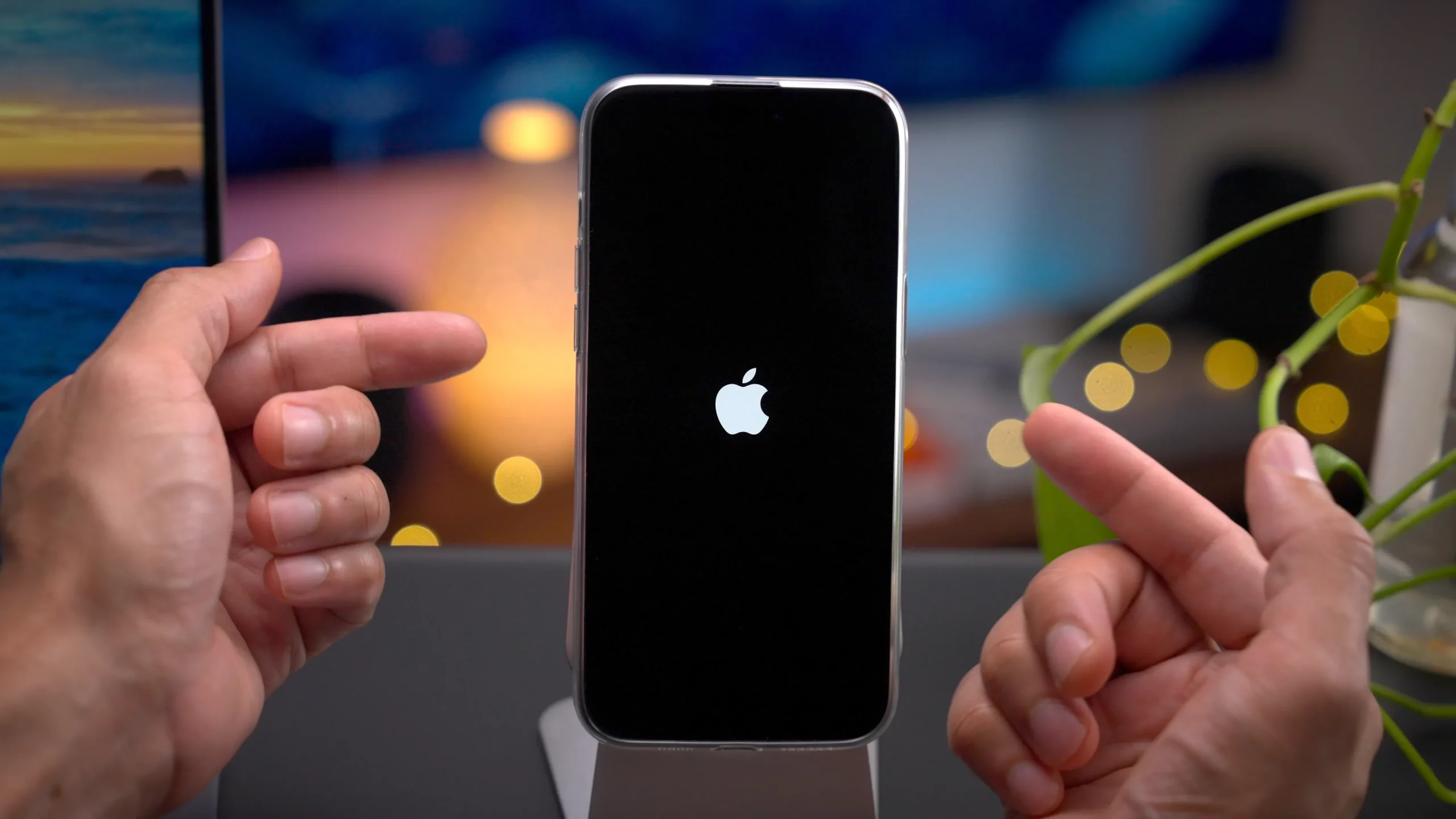
Once the iPhone restarts, check whether it can boot normally.
2) Free Up More iPhone Storage
Since error 1110 is frequently associated with insufficient storage, remove unnecessary files if you can still access the iPhone.
Mur fuq
Settings > Ġenerali > Ħażna iPhone
and review apps, videos, photos, downloads, and other large files.
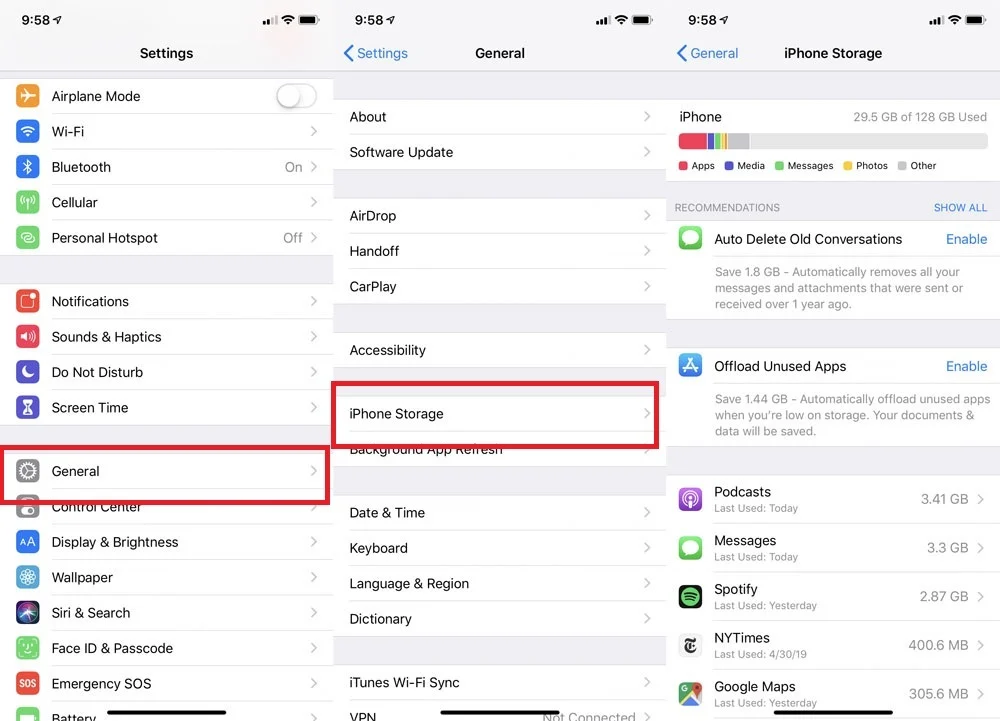
Once you’ve cleared some space, restart your iPhone and try installing the iOS update again.
3) Update iTunes or macOS
An outdated version of iTunes or macOS can sometimes interfere with iPhone updates and restores.
Windows users should update iTunes or the relevant Apple device-management software to the latest available version. Mac users can check
System Settings > General > Software Update
for available macOS updates.
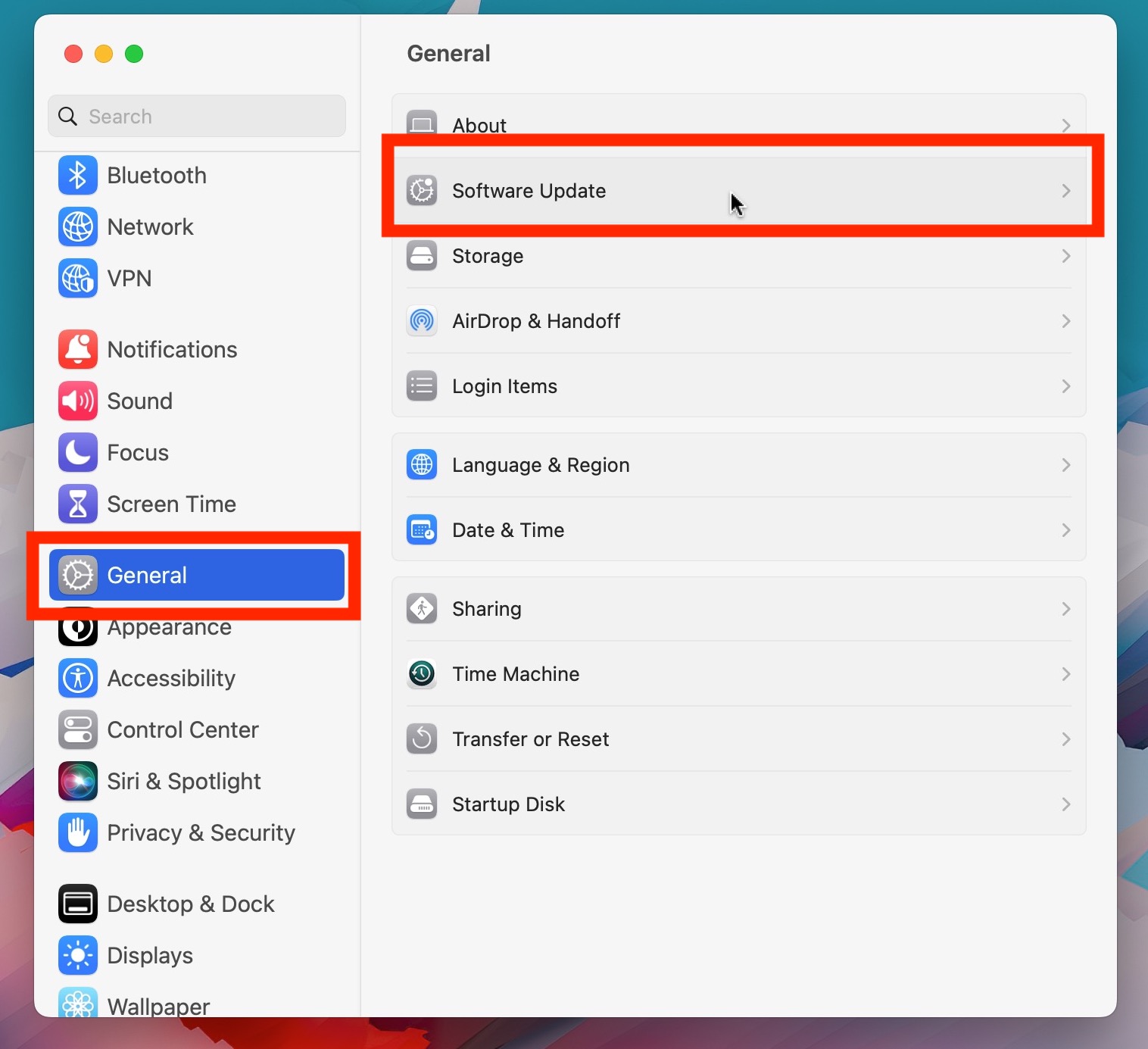
Reconnect your iPhone afterward and try the update again.
4) Check the USB Cable and Port
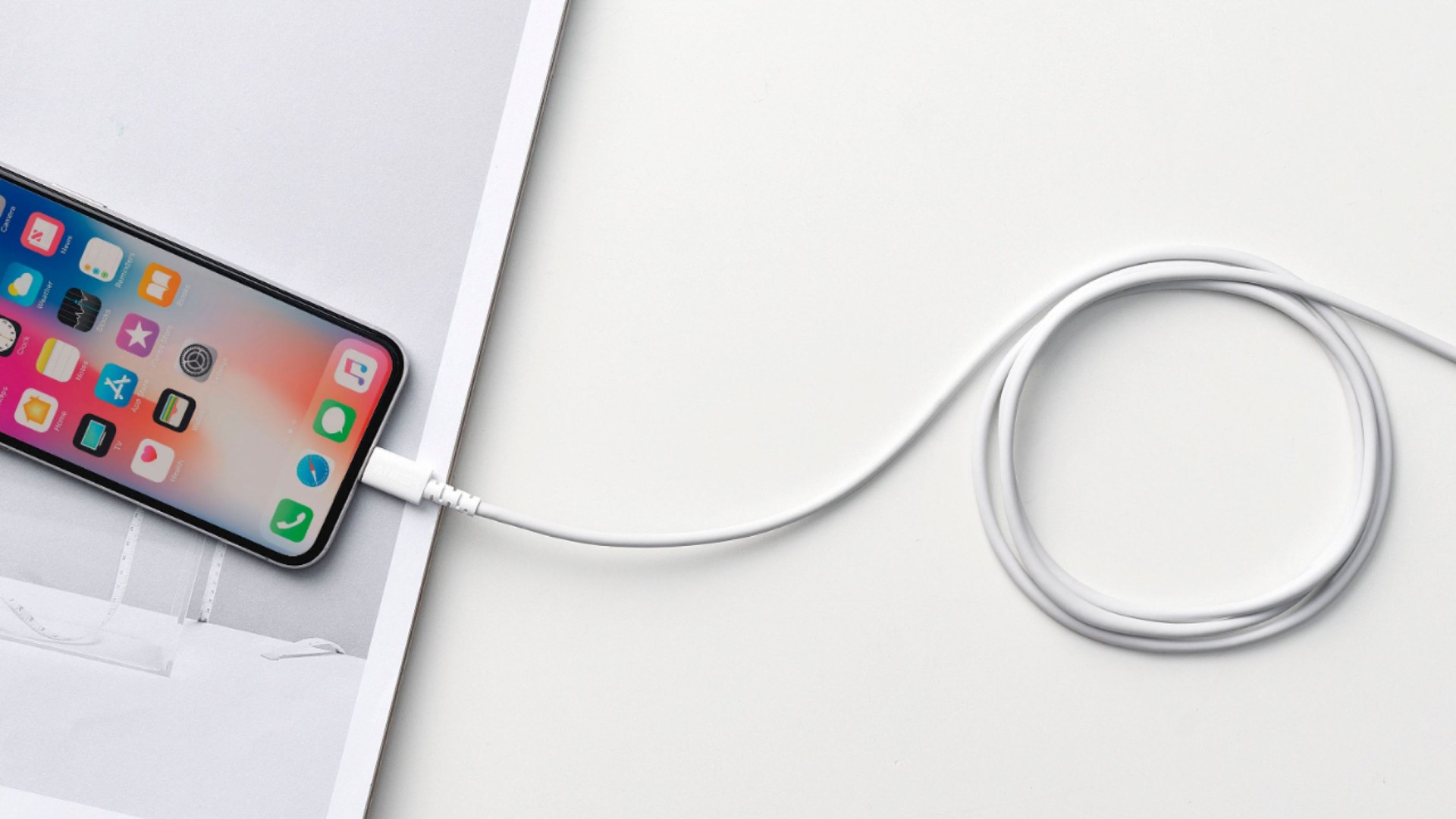
Use a reliable USB cable and connect your iPhone directly to the computer. If the error 1110 continues, switch to another USB port or try a different computer.
5) Update Your iPhone in Recovery Mode
If the iPhone won’t start normally, try putting it into recovery mode.
Connect the device to your computer, enter recovery mode, and open Finder or iTunes. When prompted to
Aġġornament
jew
Irrestawra
, agħżel
Aġġornament
first.
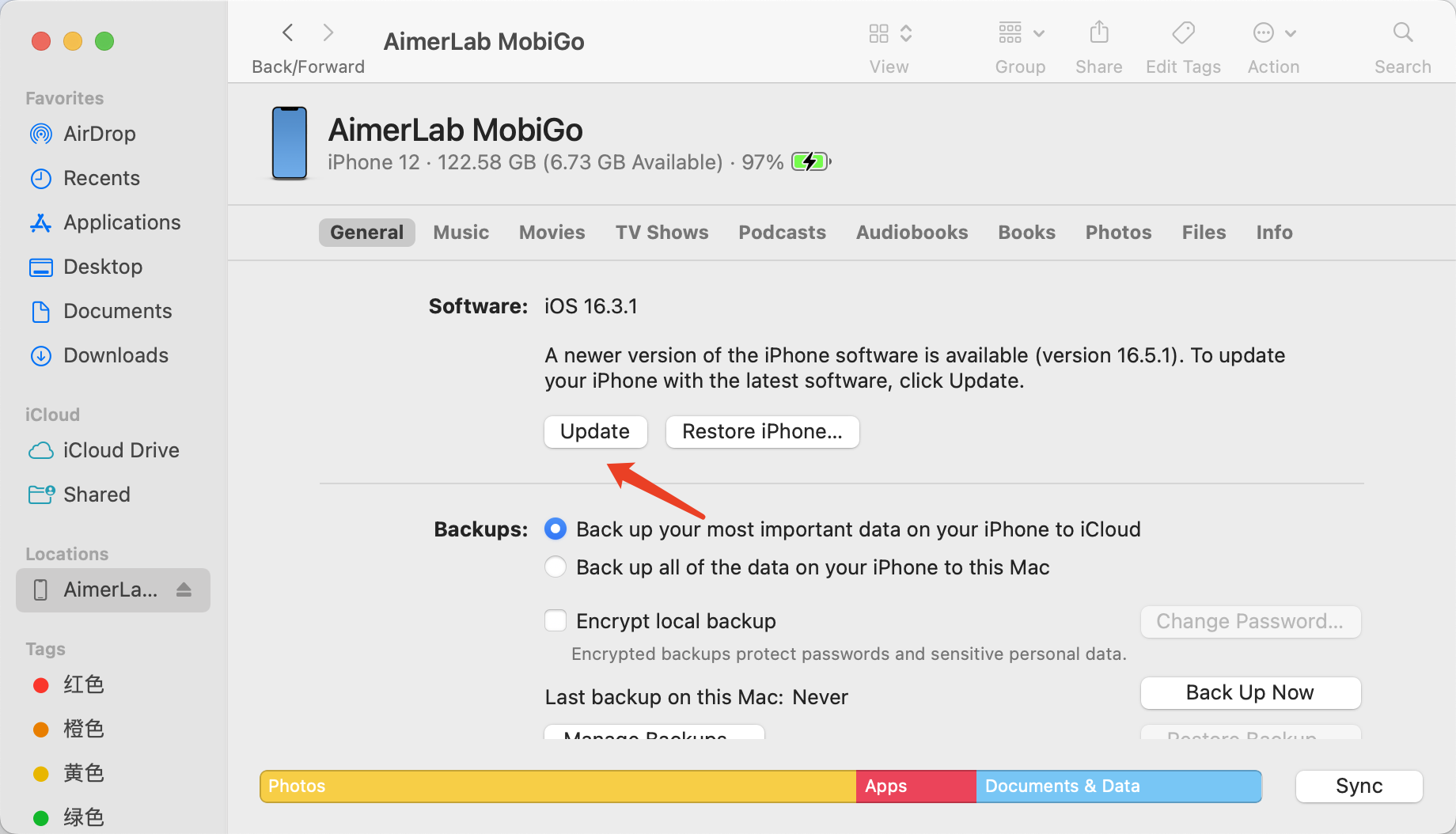
This attempts to reinstall iOS without erasing the data stored on your iPhone. Keep the device connected until the process finishes.
6) Try Another Computer
Sometimes error 1110 may be accompanied by communication or software problems on the computer being used for the update.
If possible, connect your iPhone to another Mac or Windows PC with updated Apple software. Then try the update or recovery process again.
This simple step can help rule out computer-specific issues.
7) Restore the iPhone
If none of the previous solutions works, restoring the iPhone may be necessary.
Put your device into recovery mode, connect it to Finder or iTunes, and select
Irrestawra
. The computer will erase the iPhone and install iOS again.
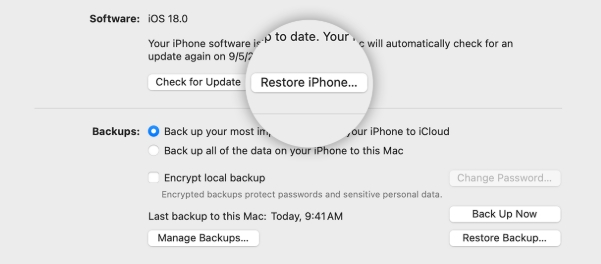
Because a restore removes personal data, use this option carefully. If you have a recent iCloud or computer backup, you can restore your data afterward.
3. Bonus: One-Click Resolve iPhone System Errors with AimerLab FixMate
Working through multiple troubleshooting methods can be time-consuming, especially when your iPhone is already stuck on the Apple logo, recovery mode screen, or another abnormal screen. If you want a more convenient solution, AimerLab FixMate offers an easier way to repair iOS system problems.
AimerLab FixMate is an iOS system repair tool designed to address a variety of iPhone and iPad software issues. Instead of manually performing complicated troubleshooting procedures, users can connect their device and follow the program’s guided repair process.
FixMate can fix many iOS issues, including recovery mode, Apple logo, boot loops, black or frozen screens, update failures, and other system errors.
Here’s how to use AimerLab FixMate:
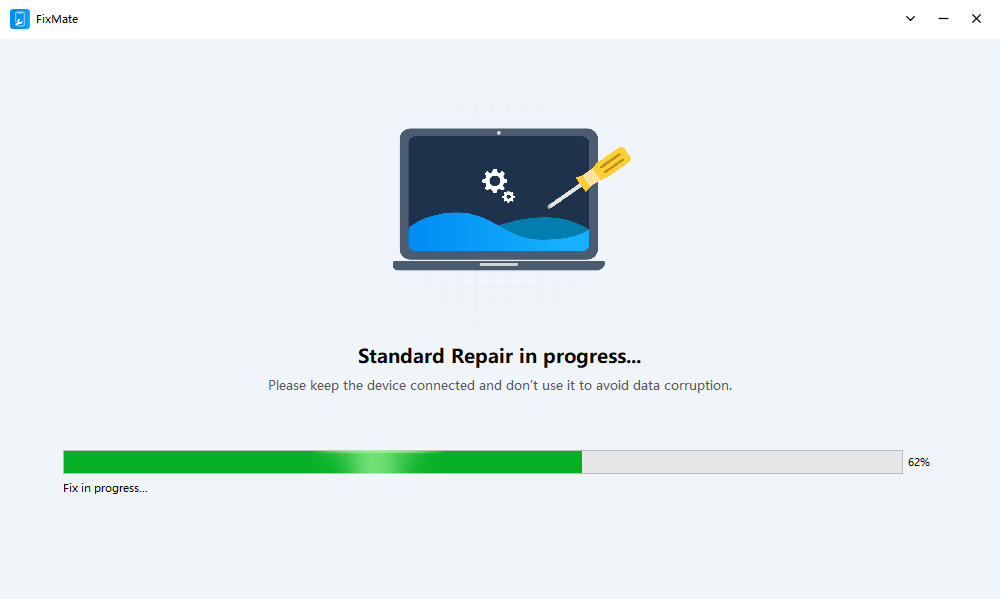
- Download and install AimerLab FixMate on your Mac or Windows computer, then launch the program and connect your iPhone using a USB cable.
- After FixMate detects your device, select the appropriate system repair option.
- FixMate will identify compatible firmware for the connected device; Confirm the device information and download the required firmware package.
- Once the firmware is ready, begin the repair and FixMate will automatically perform the required system repair process.
- When the repair is finished, the iPhone should restart, then you can then check whether the system error or stuck-screen problem has been resolved.
4. Konklużjoni
iPhone error 1110 can disrupt an iOS update or restore, sometimes leaving your device stuck on the Apple logo or recovery screen. Since insufficient storage is a common cause, freeing up space is a good first step.
You can also try force restarting your iPhone, updating iTunes or macOS, checking the USB connection, using recovery mode, or restoring the device. Keep in mind that some methods, especially restoring, may cause data loss.
For a simpler solution,
AimerLab FixMate
is worth trying. Its guided repair process can help fix iPhone system errors, failed updates, frozen screens, and other iOS issues without complicated manual troubleshooting.
- Kif Tirranġa l-Meta "Nistenna iPhone Ieħor" Imwaħħal?
- Kif Tirranġa l-iOS 26 li Jieħu Dejjem Biex Jitniżżel?
- Kif Tara Postijiet Frekwenti fuq l-iPhone?
- Għaliex l-iOS 26 Huwa Daqshekk Laggy?
- Kif Tirranġa "Kien hemm Żball fil-Verifika tal-Passcode tal-iPhone Tiegħek"?
- Kif Tirranġa "Temm fuq iPhone Ġdid" Imwaħħal?
- Kif Spoof Pokémon Go fuq iPhone?
- Ħarsa ġenerali lejn Aimerlab MobiGo GPS Location Spoofer
- Kif tibdel il-post fuq l-iPhone tiegħek?
- Top 5 Spoofers Foloz tal-Post tal-GPS għall-iOS
- Definizzjoni tal-GPS Location Finder u Suġġeriment Spoofer
- Kif tibdel il-post tiegħek fuq Snapchat
- Kif Sib/Aqsam/Aħbi Post fuq apparati iOS?